Your Brand, Ready for AI: The September BrandVibes Update
By BrandVibes
You have the guidelines. You have the photos. You know how your brand should look and sound. Then you open another AI tool and start explaining it all again.
This September update connects more of that journey: bringing your brand into BrandVibes, finding its assets, creating images, building campaigns and sharing context with AI assistants.
The idea is simple: we make brands usable by AI. This release gives you more ways to put that idea to work, with clearer controls over what goes in and what you keep.
Watch the animated overview above, or explore the updates below.
The Update at a Glance
- Bring your website and existing guidelines into one shared brand source.
- Create one to four image variations with up to six references, four model choices and 16 editable presets.
- Turn images into editable campaign layouts, and connect compatible assistants to your brand guidance and library.
What Is Machine-Readable Brand Intelligence?
It is brand knowledge organized so software can use it: your voice, colours, typography, visual guidance and assets, structured into a shared source for people and AI tools.
A designer can review that information in your brand portal. An assistant can access it through structured instructions or a connection. A creation workflow can combine it with the photographs and direction you choose.
Your brand becomes useful at the moment someone creates something with it.
Start With the Brand You Already Have
The new brand onboarding flow begins with your company website and encourages you to add existing guidelines. Bring PDFs, PowerPoint or Word documents, text and images; supported files can also come from a folder or ZIP. Website-only setup remains available.
Choose the sources to analyse, review the extracted rules and select which source takes priority when guidance differs. Analysis starts when you ask for it.
Drafts can be restored in the same browser, so the trip through sign-in does not mean collecting everything again. Analysis requires a verified company email account, including supported Google Workspace accounts.
Source asset imports, logo information, font selection and text contrast have also improved. Review the extracted guidance before putting it to work, particularly when your source material is incomplete.
Find Your Starting Point Faster
An image workflow only works if you can see the images.
The Asset Library and Gen AI source picker now use appropriately sized thumbnails and load tiles as they approach the visible area. Selected images and larger previews receive priority, reducing the oversized downloads that were slowing things down.
Loading, unavailable-image and retry states are clearer, and mobile previews give the picture room above its details. Downloads still use the original files.
This builds on Asset Library 2.0’s folders and organization tools. Find the photo you need, inspect it and keep moving.
Can I Create Several Images From Existing Brand Photos?
Yes. Gen AI now accepts up to six source images and creates one to four variations per set. Start with people, products or places already in your library, then choose what the new scene should do.
Four models are available: Nano Banana 2 Lite, Nano Banana 2, Nano Banana Pro and GPT Image 2. Format choices adapt to the selected model; GPT Image 2 offers 3:4 instead of 4:5.
The new library contains 16 editable presets across People, Products, Campaigns and Textures. Choose a team scene, studio product shot, campaign hero or material detail, and the preset fills a complete creative brief you can change.
You can also edit the full prompt sent to the model, including the assembled brand and reference guidance, or reset it to restore automatic assembly. Choosing a preset or model does not generate an image.
Results appear together, with an individual status and reported cost. Select a result to compare it with its source images, download it or save it to your library. Keep the page open while the set starts; completed results remain in history. Reloading does not automatically order more images.
Five Variations, One Starting Point
We tried two existing Adway team photos with the Team, together preset and saved five results across the four models, including two Lite variations.
The total provider-reported cost was approximately $0.32 in that run. That is an observed test result, not a price quote. All five placed the people in a shared scene, but details varied: one model changed an outfit, and others introduced incidental logos. Review faces, clothing, hands and background details before using a result publicly.
Take the Image Into a Campaign
Motion Studio carries the workflow into branded compositions. Start with a library photo or saved generation, then add your exact logo, headline, body copy and call to action as editable layers.
Adjust colours, typography, crop, placement and motion. Preview the composition in social-post and website-hero contexts, and carry one brief across 16:9, 9:16, 1:1 and 4:5 formats. The brief supplies starting copy that you can edit.
Save a campaign, reopen it and export a package containing PNGs, silent video, caption text and a restorable design file. Video export runs in the browser with the tab visible: MP4 where supported, otherwise WebM. The design file refers to media in your brand library.
There is also a new AI motion workflow: select one or more references, choose a five- or ten-second clip and review the estimate before ordering. Review the generated film before using it in a campaign.
Can ChatGPT or Claude Read and Save Brand Assets?
BrandVibes now supports authenticated connections through MCP, the Model Context Protocol. Compatible assistants can read guidelines, search assets, retrieve supported image previews and, with editing permission, upload images and update library information.
Open your brand’s connection page for setup instructions. The shared server address is https://brandvibes.ai/mcp. Sign in to BrandVibes and approve access; the connection follows your existing brand permissions. You can disconnect signed-in apps in Profile & Settings. Developers can also create a key limited to one brand.
Assistant setup depends on the client's plan and workspace settings. The connection page explains the steps for ChatGPT and Claude.
Once connected, try a specific request: “Find three newsletter photos and show their previews.” Supported clients with write access can also save a finished image back, provided they supply accessible image data.
Put Your Brand to Work
Start with the knowledge and assets you already trust. Bring them into a shared brand source, explore a few creative directions, review the results and keep the work your team wants to use.
Set up your brand, or open your existing brands and try the new creation tools. Your next campaign can start with what already makes your brand yours.
Video text and visual description
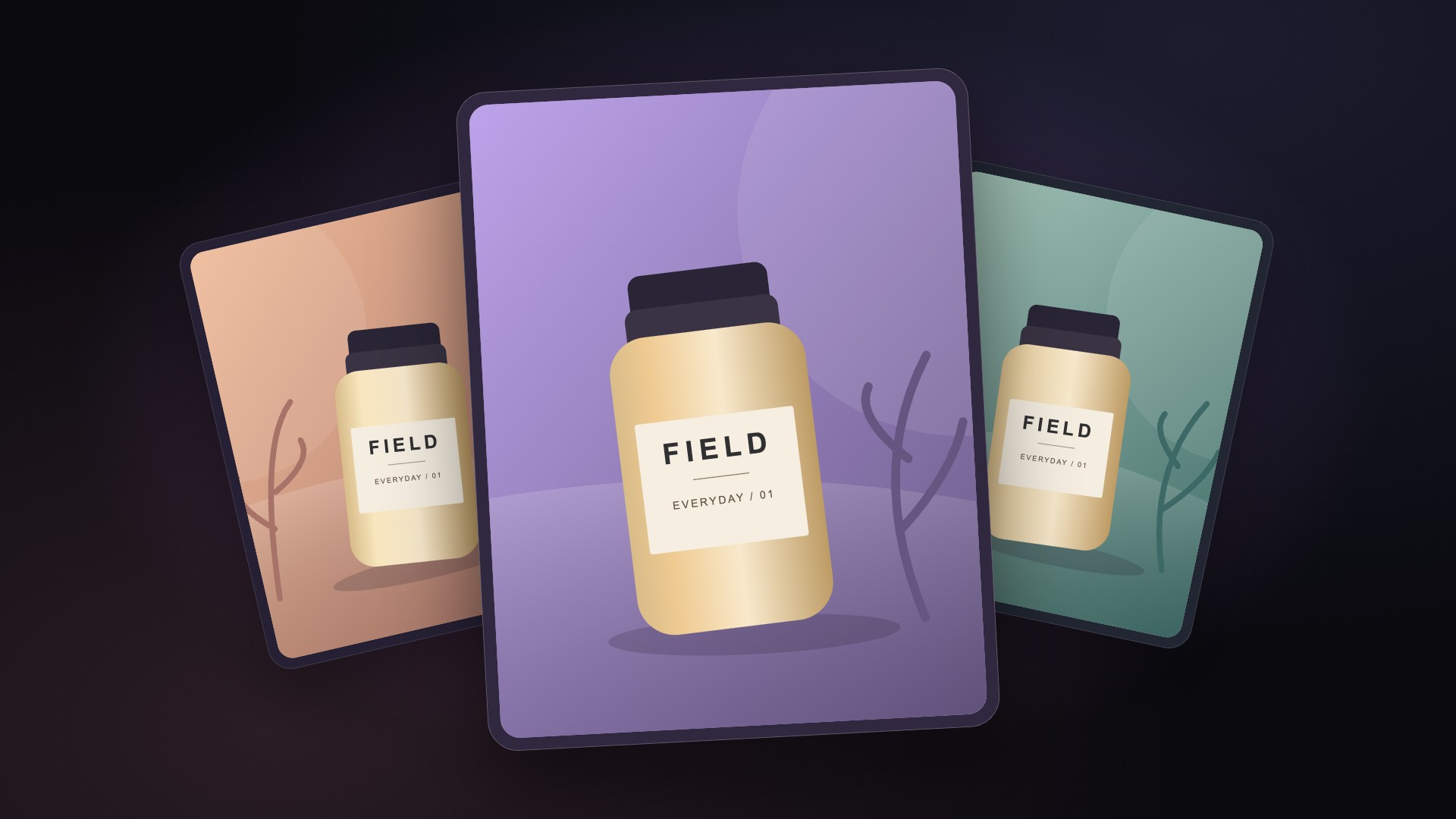
Instrumental music; no narration. This animated overview uses product interface illustrations and FIELD, an example brand.
00:00 — Your brand. Ready for AI. From the guidelines you know to the next thing you create. Brand context. Images & motion. Connected AI. We make brands usable by AI.
00:08 — The brand you know. Ready to put to work. Start with your website and existing guidelines. Review your voice, colour palette, typography and visual direction. One shared source. Human judgement. Usable brand context.
00:17 — A faster way to find your starting point. Browse previews. Search your library. Bring your references. Up to 6 references. Your next image starts here. Build on the assets you already have. Use in image creation.
00:26 — More possibilities. Still your brief. Start with a preset, then make every word your own. 16 editable presets. Full prompt: editable. 4 models: Nano Banana 2 Lite, Nano Banana 2, Nano Banana Pro, GPT Image 2. 1–4 variations. More directions to consider.
00:39 — Explore the options. Trust your eye. Compare with your originals, then save the versions you love. Your judgement is part of the process. Check the details. Choose what works. Save your favourite. Saved to your library.
00:48 — One idea. Made to fit. Motion Studio keeps your brand elements editable. Logo. Headline. Body. CTA. Image. 16:9, 1:1, 4:5 and 9:16 campaign layouts. Save & reopen. Export your campaign.
00:59 — Your brand context. Connected. Bring brand guidance and images into a compatible AI assistant with MCP. Voice & guidelines. Visual direction. Brand images. One shared source. With editing permission: save work to the library. Sign in. Approve access. Revoke when you choose.
01:11 — Less repeated briefing. More room to create. We make brands usable by AI. Brand context → Creation → Connected tools. brandvibes.ai. Read the update. Make something yours.